# Windows
# Windows Fondamentale
##### lien du cours : [windowsfundamentals2x0x](https://tryhackme.com/r/room/windowsfundamentals2x0x)
### **System Configuration**
#### **Commande : MSConfig**
[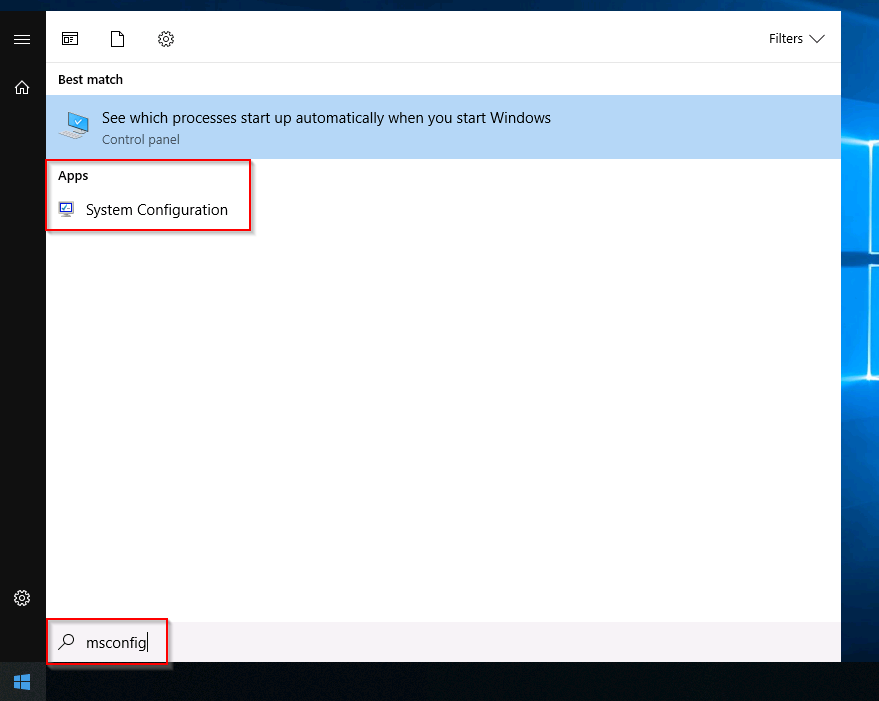](https://wiki.mira-ceti.ovh/uploads/images/gallery/2024-10/bKmdZBUI1LA8MhF6-msconfig-start.png)
#### On obtient avec
[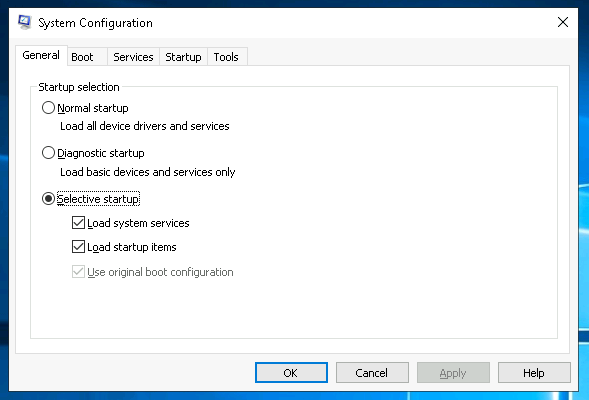](https://wiki.mira-ceti.ovh/uploads/images/gallery/2024-10/ahVjbQQqqFEzcykg-msconfig1.png)
The utility has five tabs across the top. Below are the names for each tab. We will briefly cover each tab in this task.
1. General
2. Boot
3. Services
4. Startup
5. Tools
### Boot
Dans la section boot on peut choisir le mode de boot du windows
### Services
L'onglet Services répertorie tous les services configurés pour le système, quel que soit leur état (en cours d'exécution ou arrêté).
Un service est un type particulier d'application qui s'exécute en arrière-plan.
### Startup
Dans l'onglet Startup, vous ne verrez rien d'intéressant. mais on pourra lancer le ***taskmanager***
Comme vous pouvez le constater, Microsoft conseille d'utiliser le Gestionnaire des tâches (taskmgr) pour gérer (activer/désactiver) les éléments de démarrage. L'utilitaire de configuration du système n'est PAS un programme de gestion du démarrage
### Tools
L'onglet Outils contient une liste de divers utilitaires (outils) que nous pouvons exécuter pour configurer davantage le système d'exploitation. Chaque outil fait l'objet d'une brève description qui permet de comprendre à quoi il sert.
L'onglet Tools Est le plus intéréssant
# Windows Forensics
##### lien du cours : [https://tryhackme.com/r/room/windowsforensics1](https://tryhackme.com/r/room/windowsforensics1)
## Regedit
#####
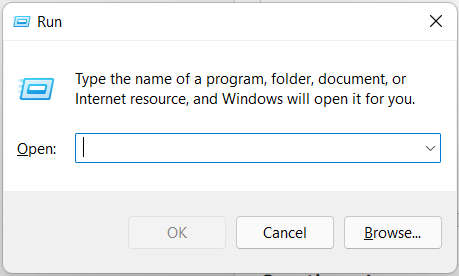
##### appuyez simultanément sur les touches Windows et R.
Une fenêtre d'exécution s'ouvre alors, qui ressemble à ceci :
[](https://wiki.mira-ceti.ovh/uploads/images/gallery/2024-10/99WrQRBxcje2CaaV-image.png)
```
regedit.exe
```
Structure du registre :
Le registre d'un système Windows contient les cinq clés racine suivantes :
1. HKEY\_CURRENT\_USER
2. HKEY\_USERS
3. HKEY\_LOCAL\_MACHINE
4. HKEY\_CLASSES\_ROOT
5. HKEY\_CURRENT\_CONFIG
If you are accessing a live system, you will be able to access the registry using regedit.exe, and you will be greeted with all of the standard root keys we learned about in the previous task. However, if you only have access to a disk image, you must know where the registry hives are located on the disk. The majority of these hives are located in the `C:\Windows\System32\Config` directory and are:
1. **DEFAULT** (mounted on `HKEY_USERS\DEFAULT`)
2. **SAM** (mounted on `HKEY_LOCAL_MACHINE\SAM`)
3. **SECURITY** (mounted on `HKEY_LOCAL_MACHINE\Security`)
4. **SOFTWARE** (mounted on `HKEY_LOCAL_MACHINE\Software`)
5. **SYSTEM** (mounted on `HKEY_LOCAL_MACHINE\System`)
**Hives containing user information:**
Apart from these hives, two other hives containing user information can be found in the User profile directory. For Windows 7 and above, a user’s profile directory is located in `C:\Users\\` where the hives are:
1. **NTUSER.DAT** (mounted on HKEY\_CURRENT\_USER when a user logs in)
2. **USRCLASS.DAT** (mounted on HKEY\_CURRENT\_USER\\Software\\CLASSES)
The USRCLASS.DAT hive is located in the directory `C:\Users\\AppData\Local\Microsoft\Windows`
The NTUSER.DAT hive is located in the directory `C:\Users\\`